 My Sound Alarm
How to set part of a song as your iPhone alarm
The Clock app can use a song as an alarm, but it always plays from the beginning. There is no setting to start in the middle.
To wake up to the chorus, you either make a ringtone of up to 30 seconds in GarageBand, or use an alarm app that can trim the sound.
This page is written by the developer of one of those apps, My Sound Alarm. The Clock and GarageBand steps follow Apple's support article.
If the start of the song is fine: the Clock app
- In Clock, open Alarms and tap +.
- Tap Sound, then Pick a song.
- Choose the song and tap Save.
- Apple Music songs work if they are downloaded to your iPhone.
If 30 seconds is enough: GarageBand
GarageBand is Apple's music app. You export part of a song as a ringtone, and the ringtone then shows up in the Clock app's alarm sounds. It takes a few more taps.
- Touch and hold the GarageBand icon and tap Create New Audio Recording.
- Tap the Tracks button, then the Loop Browser button.
- Tap Files, then Browse items from the Files app. Touch and hold the file and drag it to the left edge of the track.
- Drag the edges of the region until it is 30 seconds or shorter, then move it all the way to the left.
- Go to My Songs, select the song, tap Share, then Ringtone, then Export.
- In Clock, open the alarm, tap Sound and pick it from Ringtones.
- If the ringtone is longer than 30 seconds, GarageBand shortens it when you export.
- Songs from the Music app work only if they are not protected. Protected songs are grayed out.
For more than 30 seconds, or the sound of a video: My Sound Alarm
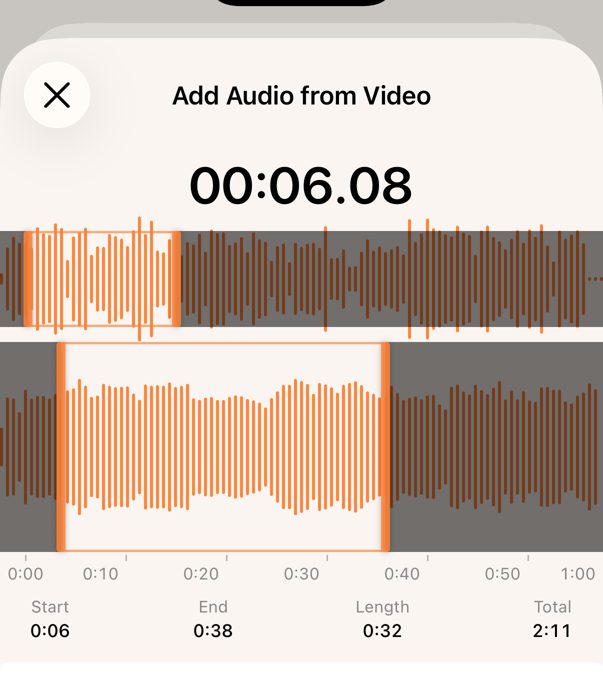
You open an audio file or a video, and choose the part to play on its waveform. There is no export step.
- When you add an alarm, tap Sound.
- Tap Add Audio File (MP3, AAC, WAV, M4A) or Add from Video (photo library or Files).
- Drag the ends of the selection on the waveform, then tap Add Selection.
- Audio files can be any length. Videos can be up to 10 minutes.
- The selected part repeats until you stop the alarm.
- It cannot read songs from the Music app, including Apple Music.
- It needs iOS 26 or later, because alarms are registered with Apple's AlarmKit.

Side by side
| Clock | GarageBand | My Sound Alarm | |
|---|---|---|---|
| Start mid-song | No | Yes | Yes |
| Length | Whole song | Up to 30 seconds | Any length (videos up to 10 min) |
| Export step | No | Yes | No |
| Sound of a video | No | No | Yes |
| Apple Music songs | Downloaded songs | Unprotected songs only | No |